1. Get started
Open SonaPin and tap the built-in wolf to see its reactions. Continue when you’re ready to personalize your badge. You can go back during setup.
2. Choose an avatar
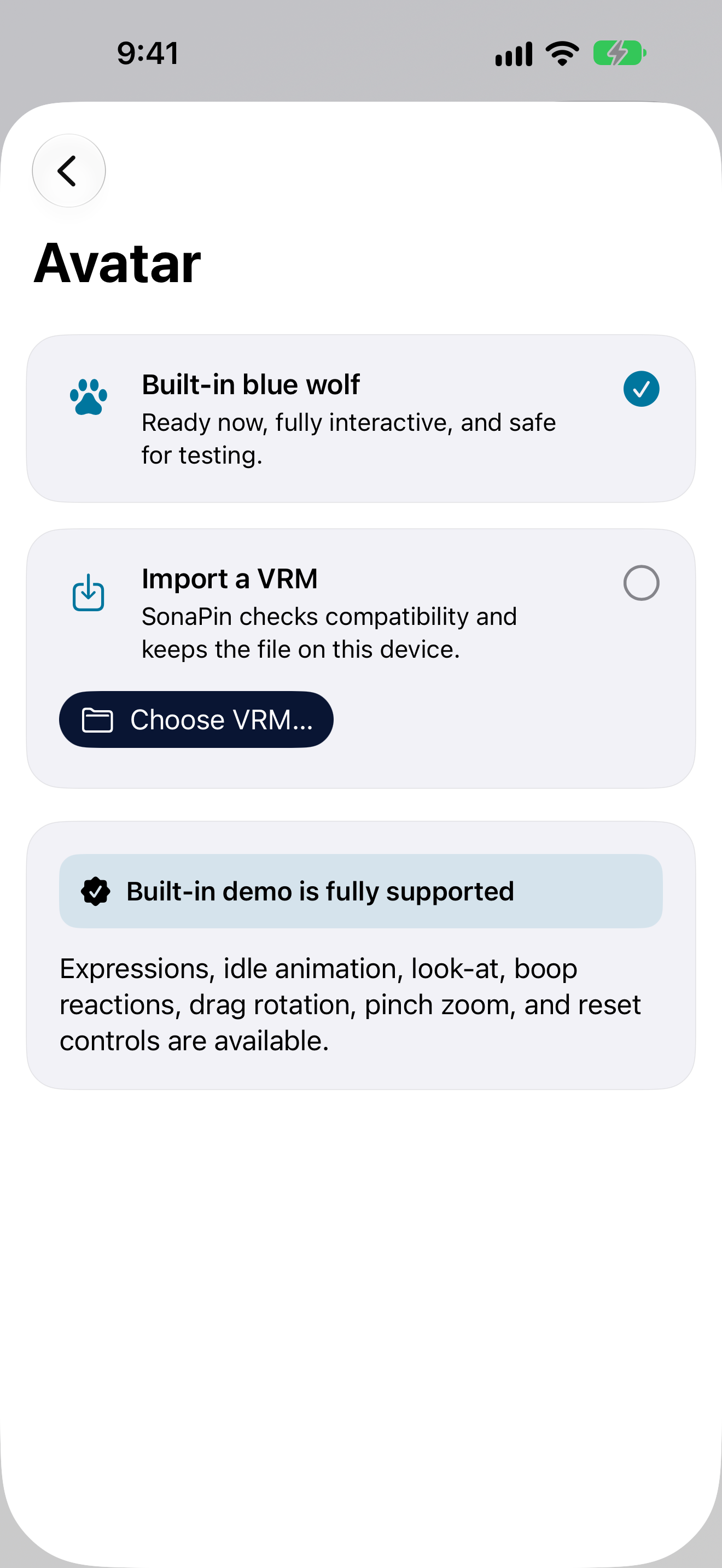
Use the built-in blue wolf or choose a VRM file from Files. SonaPin checks the model and reports compatibility before using it. Only import models you own or have permission to display.
Your selected avatar is stored in the app on this device. To change it later, open the avatar controls from your badge settings.
3. Add your details
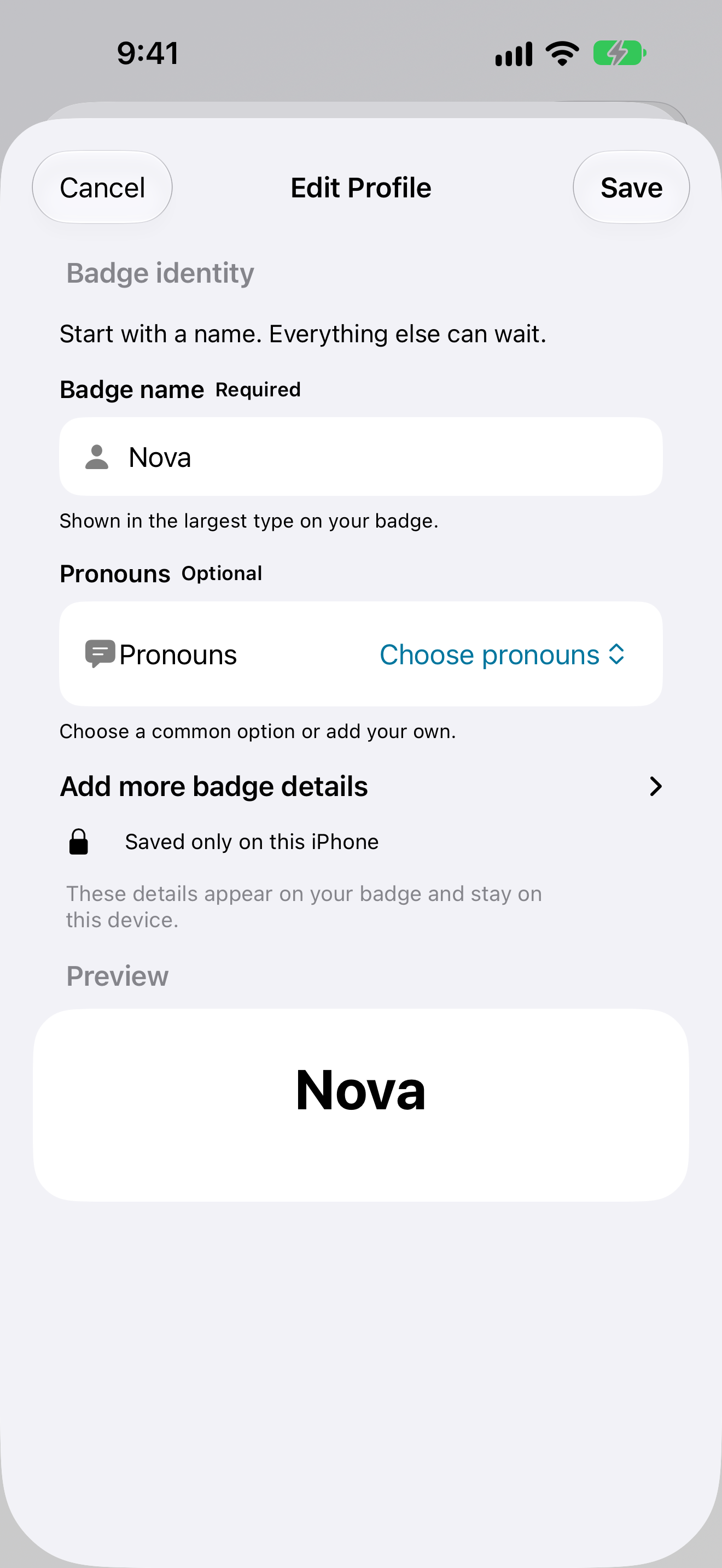
Start with a badge name. Pronouns are optional; species and a short tagline are optional too. Preview the details before saving.
4. Set up and share your badge
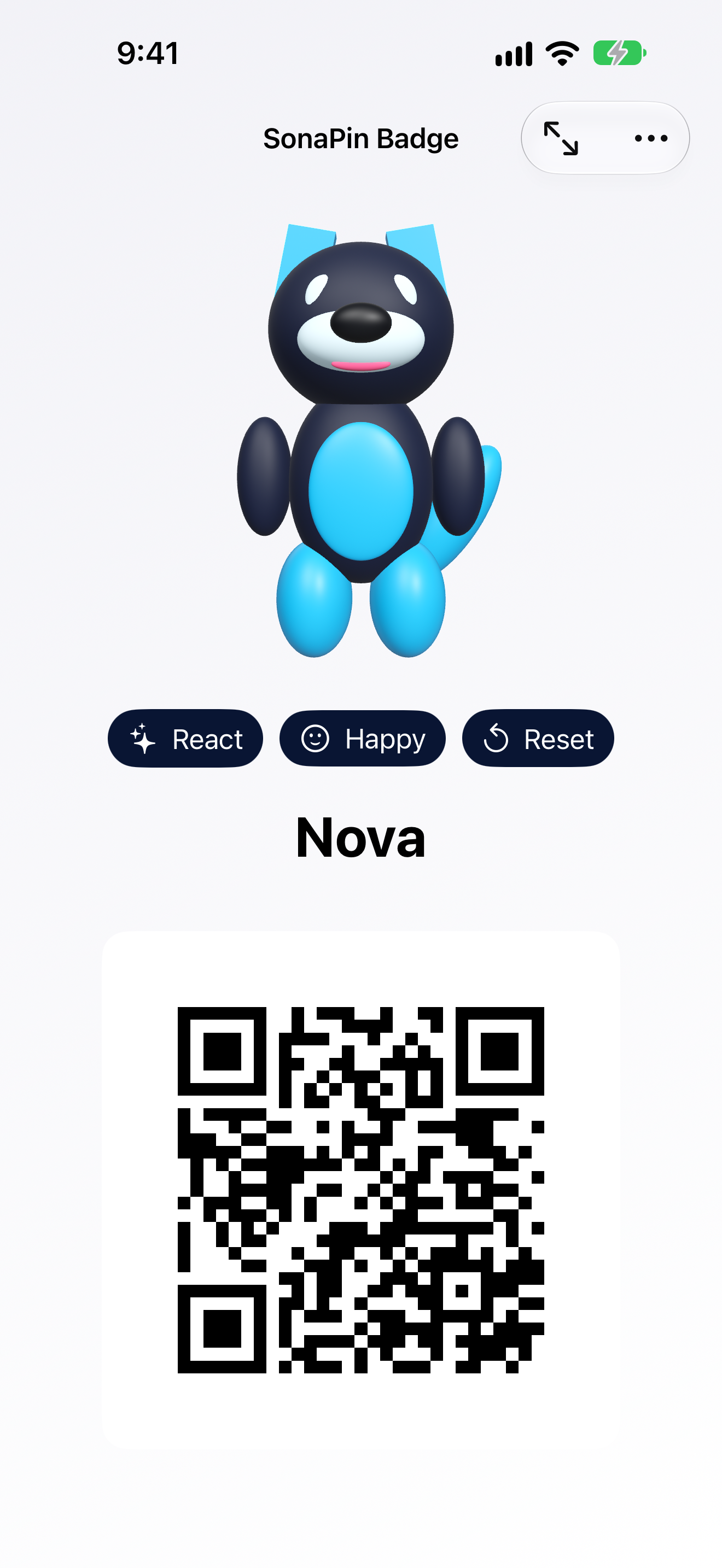
Choose what your QR code contains: a website, social profile, contact card, or custom text. Review the preview, then scan it with a separate phone to make sure it opens what you expect.
In Badge Mode, tap your avatar to see its reactions. Tap the QR code to enlarge it for easier scanning. Use Full Screen for a larger presentation, and use Badge actions to edit your details.
Privacy and settings
Your profile and imported avatar stay on your device. Sentry-enabled builds may send crash and hang diagnostics to help fix failures; those reports do not include your avatar file or QR content by design. The privacy policy explains the details.
Use Settings to adjust appearance, motion, QR contrast, haptics, and other badge preferences. For common issues, see troubleshooting and support.
SonaPin is coming soon to the App Store. Screen names and options may change before release.